
How to build a form in YakMembers
Collect volunteer sign-ups, surveys or nominations without a separate form tool. Responses land in YakMembers next to the person's record, and each published version is kept so you know which questions people answered.
Before you start
- An administrator role in YakMembers, with two-factor authentication turned on
Preview voice Narrated with a local preview voice; the final recording replaces it.
Transcript
Build a short form for members and publish it in a couple of minutes.
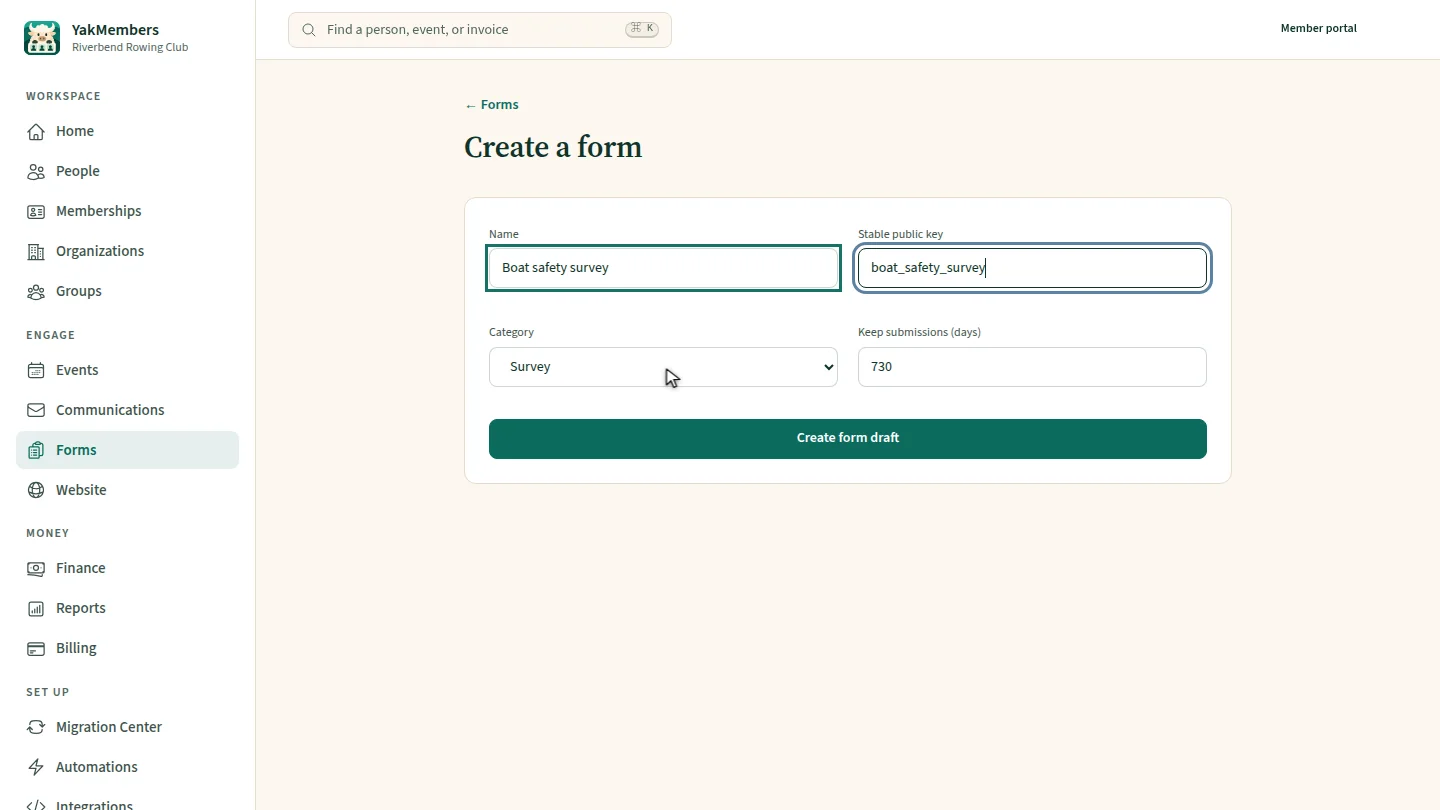
Name the form, give it a stable key for its public link, and choose a category, such as survey or application.
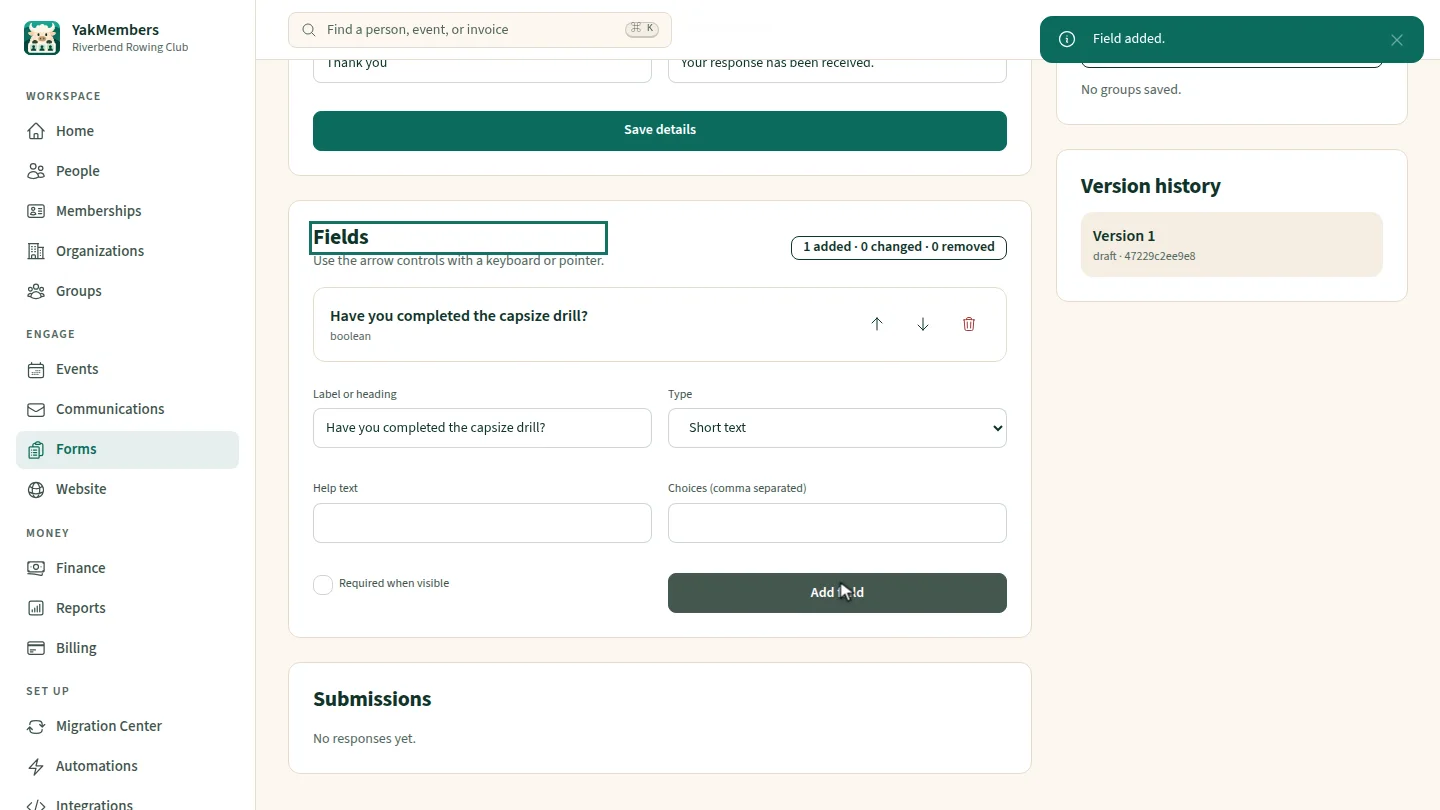
Select Create form draft. Then add a question: type the label, pick its type, and select Add field.
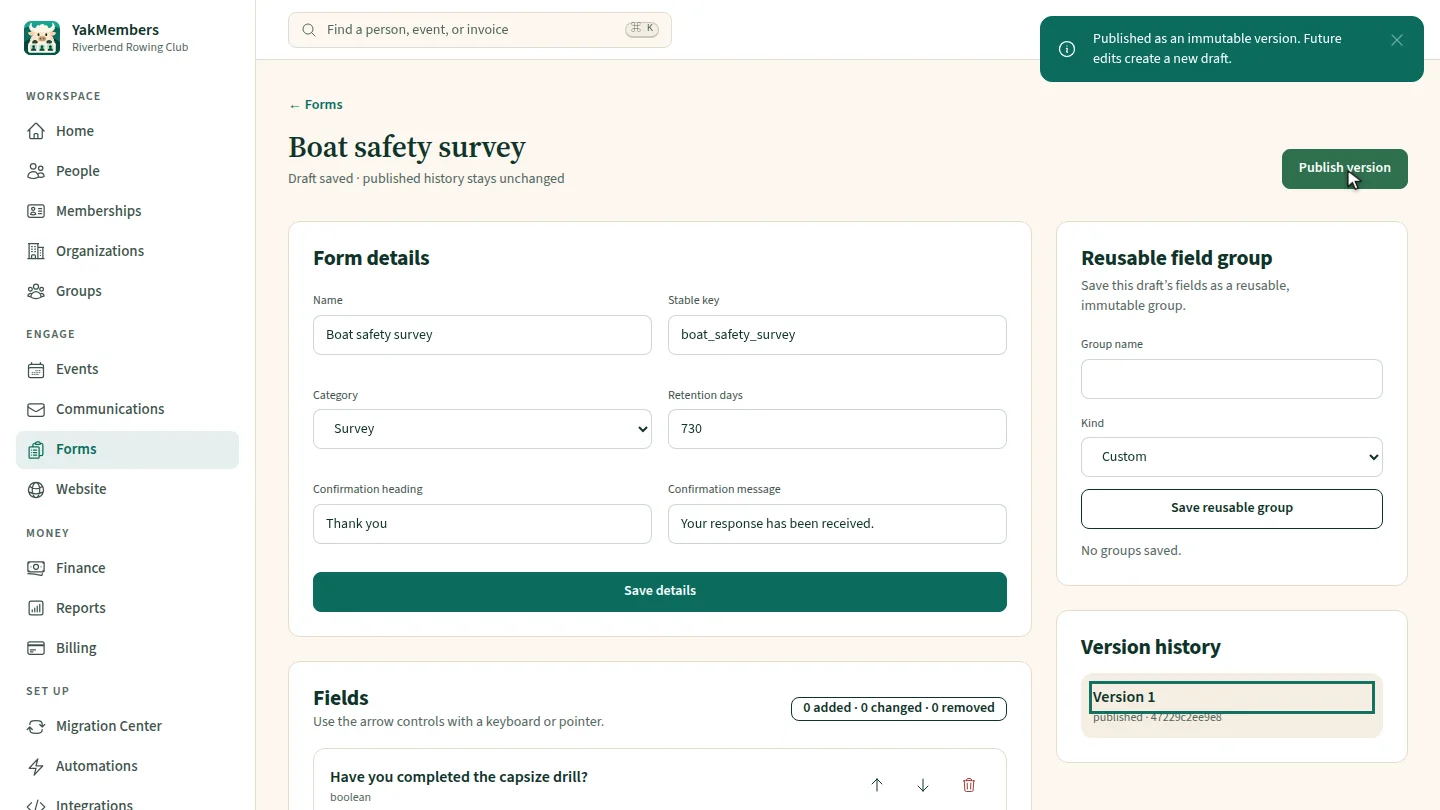
Select Publish version and confirm. Members can now fill in this exact version, and their responses appear under Submissions.
Steps
Name the form ▶ 0:06
Enter a Name and Stable public key, and choose a Category.
Add a question ▶ 0:14
Select Create form draft. Enter a Label or heading, choose a Type, then select Add field.
Publish it ▶ 0:22
Select Publish version and confirm.
Next steps
Updated 2026-11-02
online form survey sign-up form volunteer form form builder