
How to build an audience in YakMembers
An audience is a saved rule for who receives a message, such as members in their renewal grace period. YakMembers previews exactly who is included, and excludes anyone who hasn't agreed to that kind of email.
Before you start
- An administrator role in YakMembers, with two-factor authentication turned on
Preview voice Narrated with a local preview voice; the final recording replaces it.
Transcript
Pick out exactly the members a message is for, and see who's included before you send.
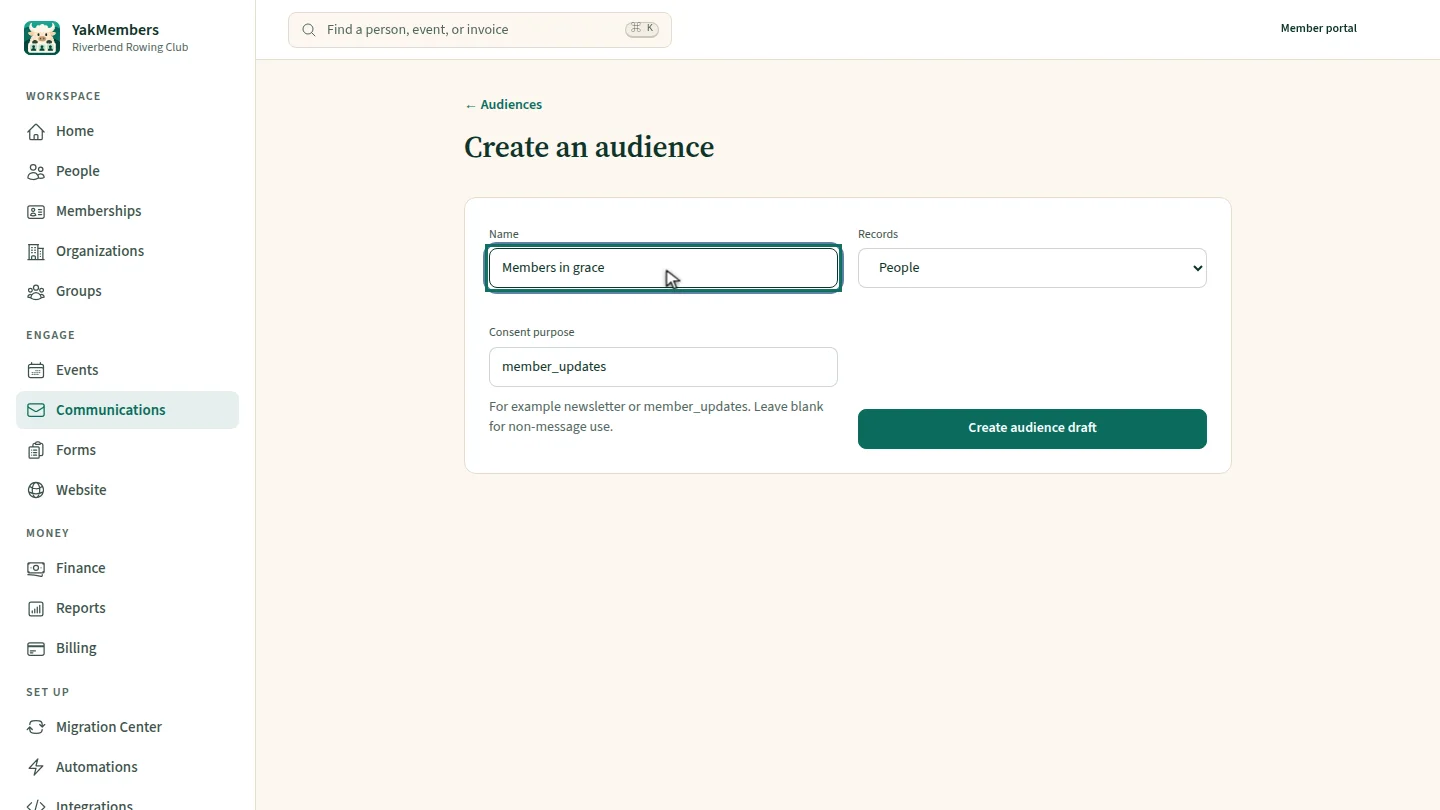
Name the audience. The consent purpose, member updates, means only people who agreed to those emails can be included.
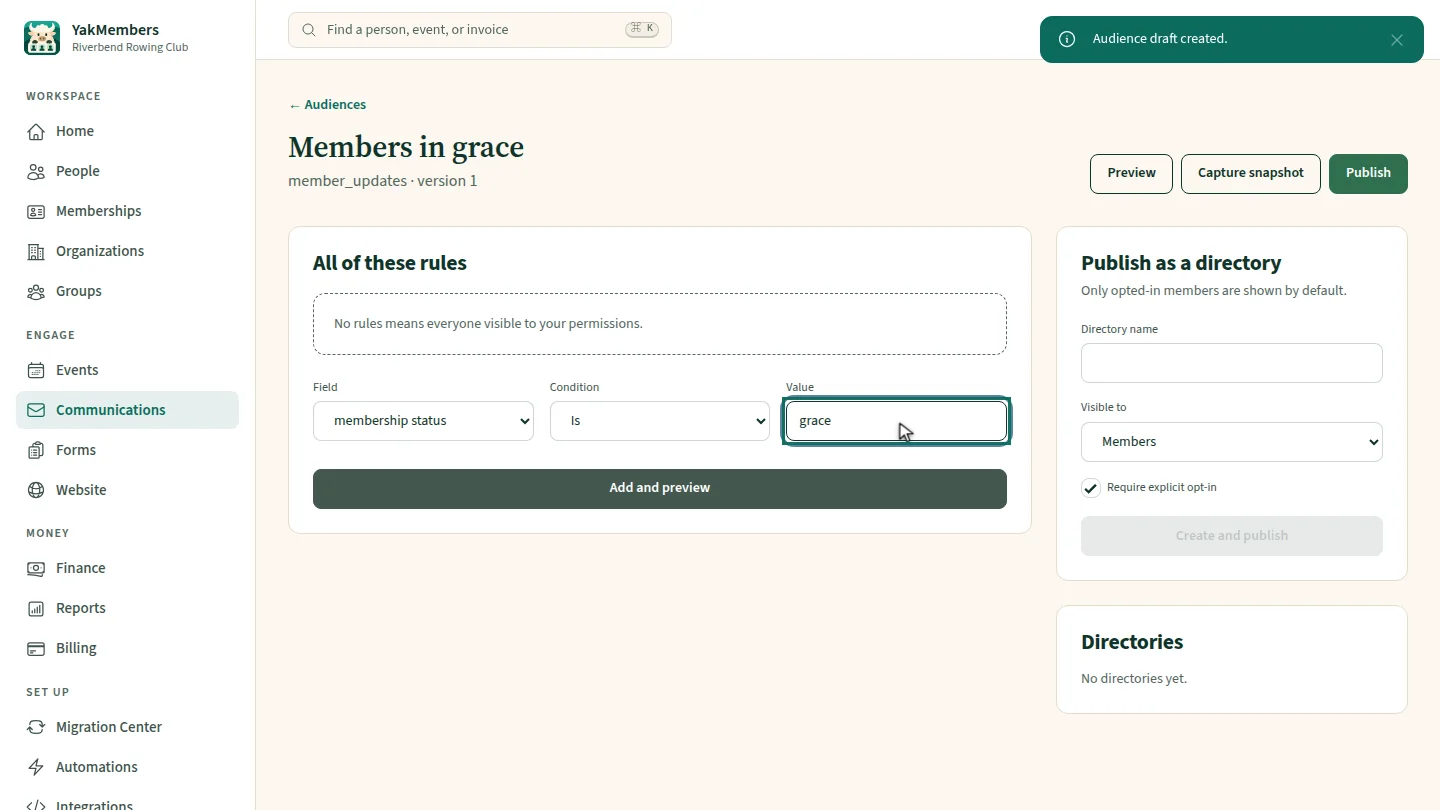
Select Create audience draft. Add a rule: membership status is grace.
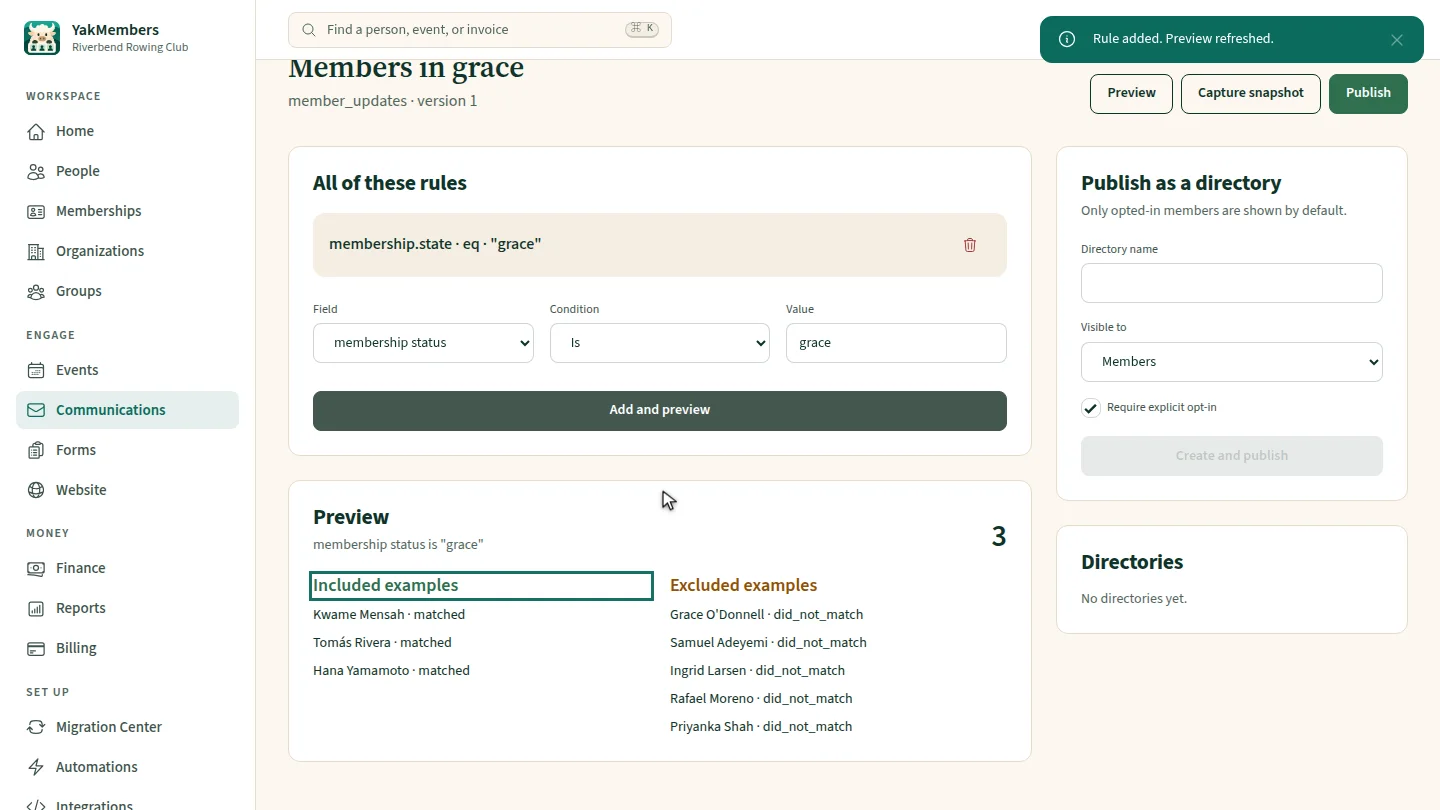
Select Add and preview. The count shows who's included, with examples of who's in and who's left out.
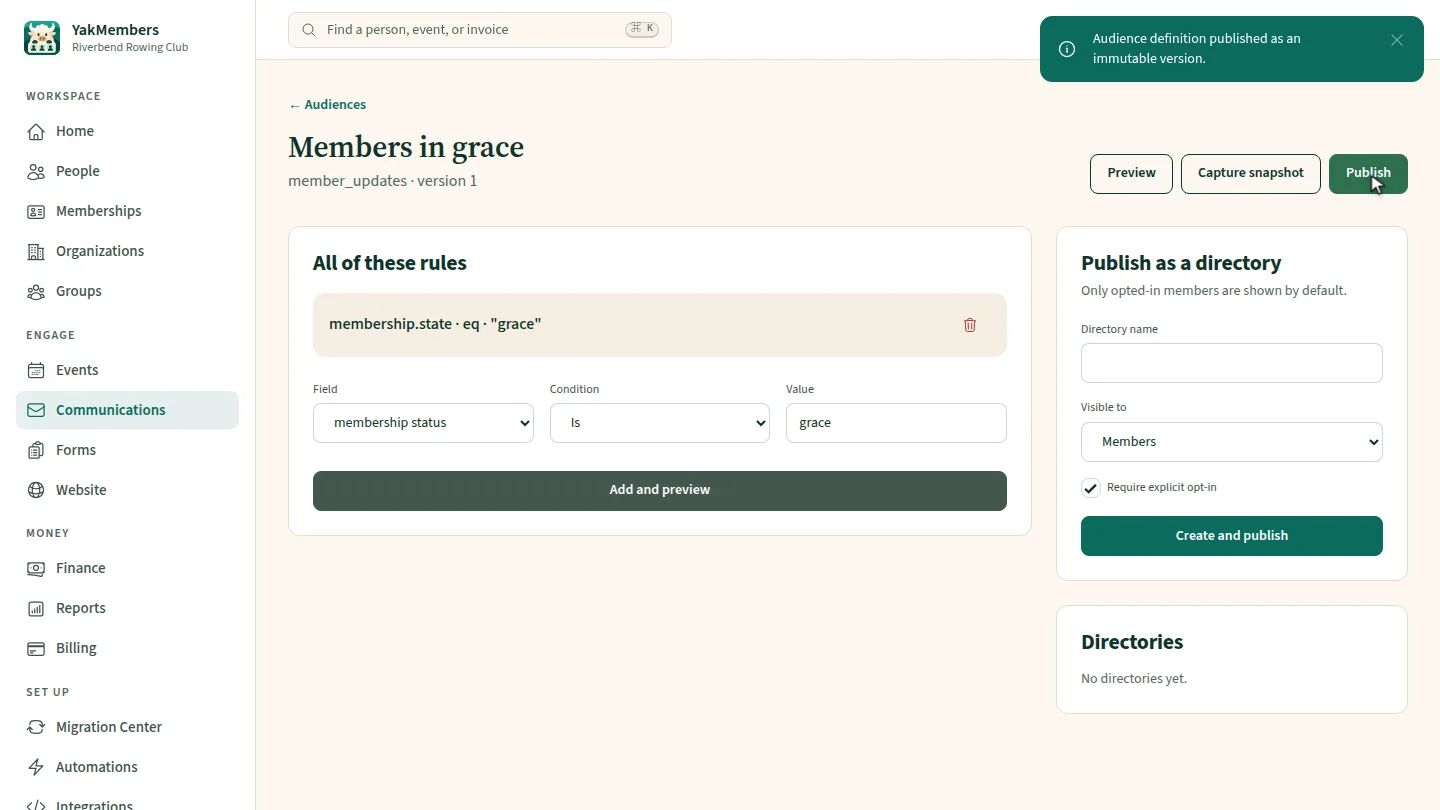
Select Publish. The audience is saved as a version, ready to choose in a campaign.
Steps
Name the audience ▶ 0:07
Enter a Name and keep the Consent purpose.
Add a rule ▶ 0:16
Select Create audience draft. Set Field to membership status, Condition to Is, and Value to grace.
Preview who's included ▶ 0:21
Select Add and preview. Preview shows the count, Included examples and Excluded examples.
Publish it ▶ 0:29
Select Publish. The audience can now be chosen in a campaign.
Next steps
Updated 2026-11-02
segment mailing list email list member filter target audience