
How to change your YakMembers plan
As the club grows, move to a plan with room for more members and emails. Choose monthly or annual billing; Stripe applies any proration to your next invoice.
Before you start
- Owner role
- A sign-in within the last 10 minutes (YakMembers asks for a recent two-factor sign-in before this action)
- An active YakMembers subscription
Preview voice Narrated with a local preview voice; the final recording replaces it.
Transcript
Move to a bigger plan when your club outgrows the current one.
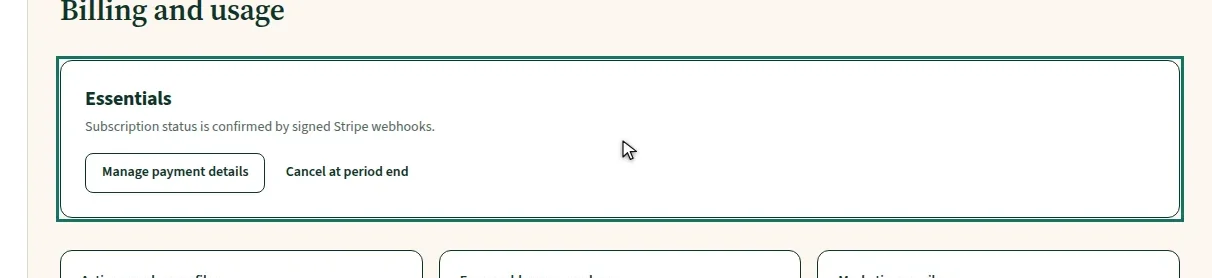
In Billing, the card at the top names your current plan, here Essentials.
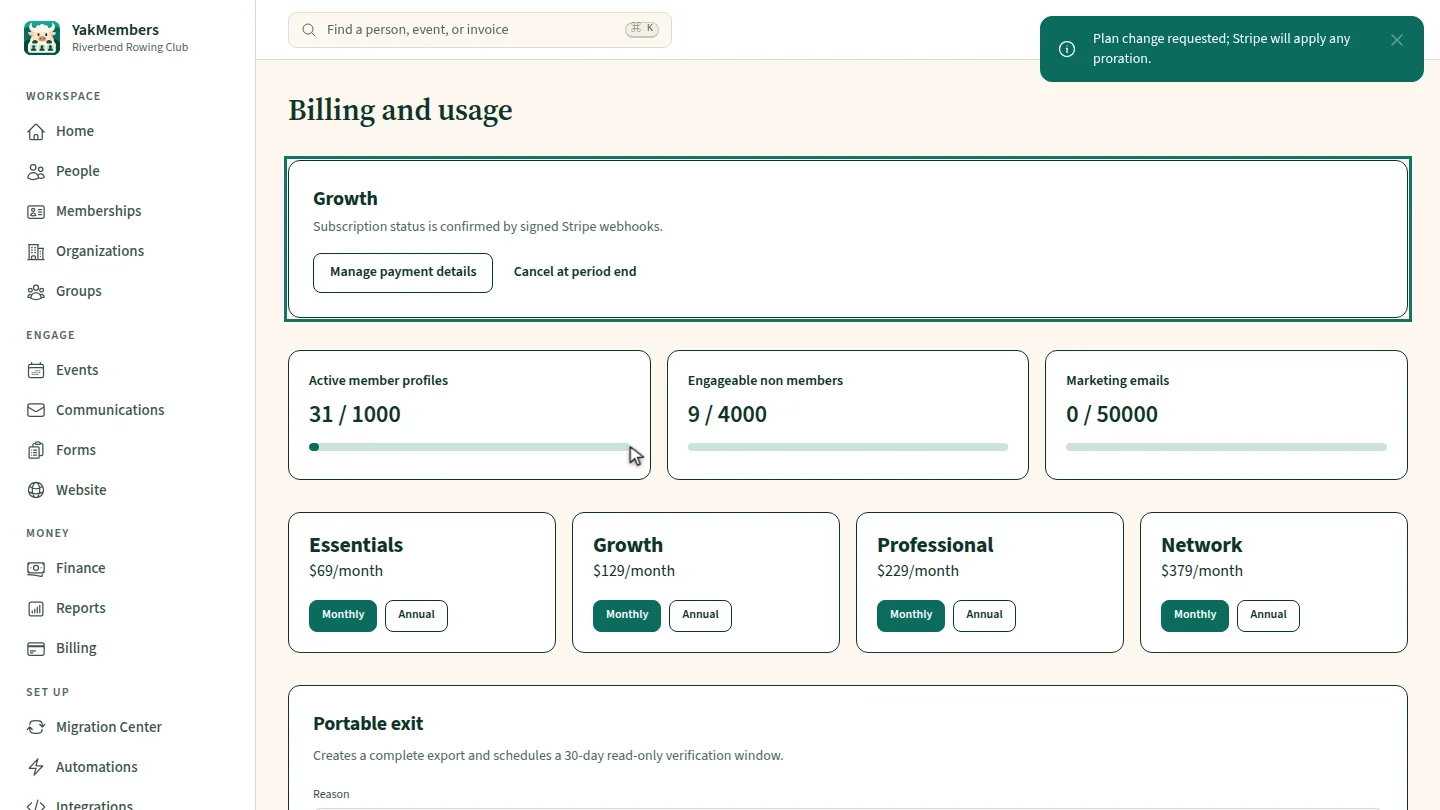
Compare the plans below, and under the one you want, select Monthly or Annual. Here, Growth, monthly.
A confirmation says Stripe will apply any proration, and the current plan changes to Growth.
Steps
Check your current plan ▶ 0:05
Open Billing. The card at the top names your current plan.
Choose a plan and period ▶ 0:11
Under the plan you want, select Monthly or Annual.

Check the change ▶ 0:19
Plan change requested; Stripe will apply any proration. appears and the plan card shows the new plan.
Next steps
Updated 2026-11-02
upgrade plan change plan billing annual billing subscription