How to publish a membership plan in YakMembers
A plan sets what membership costs and how long it lasts. Publishing locks that version, so the people who join under it keep its rules even when you change prices next season.
Before you start
- An administrator role in YakMembers, with two-factor authentication turned on
Preview voice Narrated with a local preview voice; the final recording replaces it.
Transcript
Set a membership price and term, then publish it so new members join on those rules.
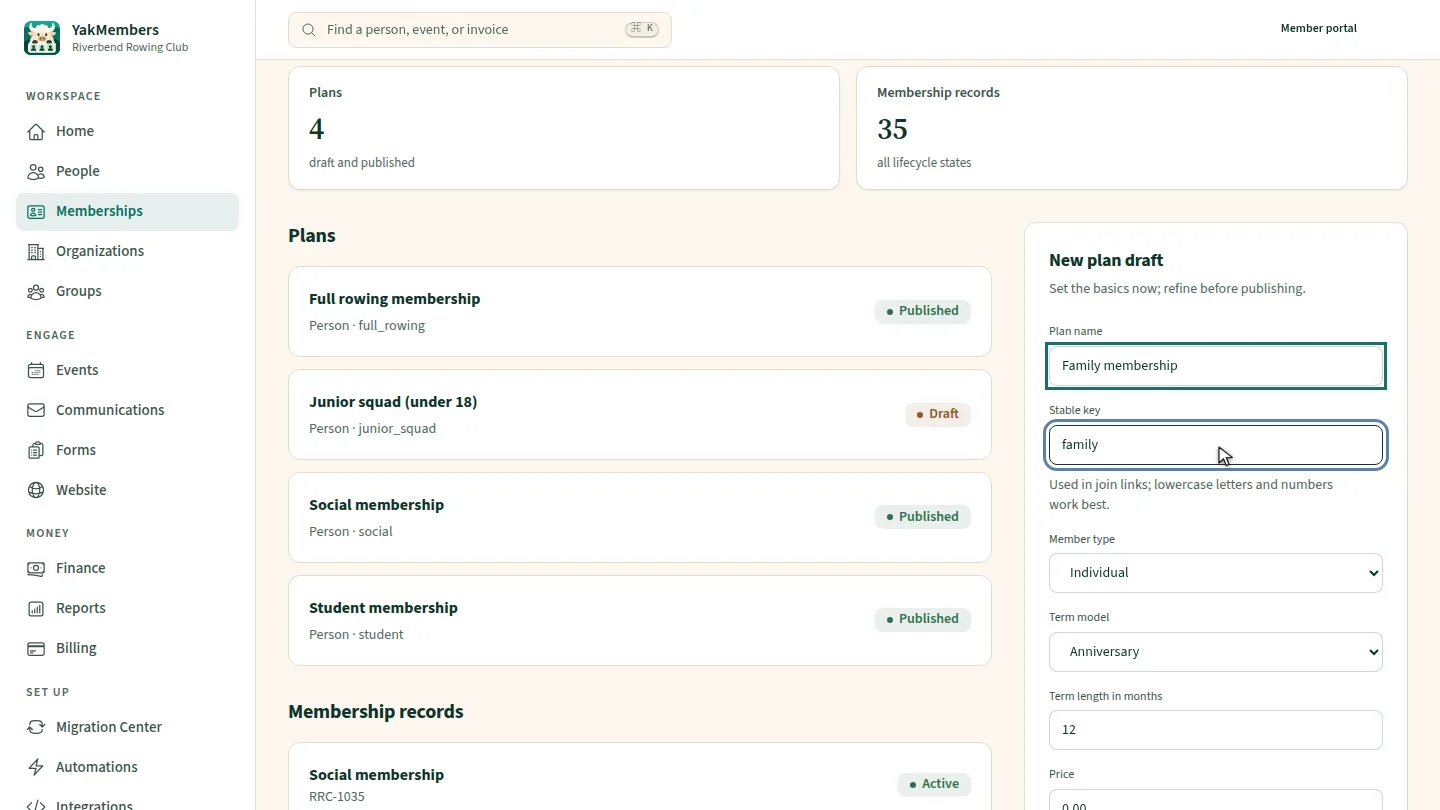
Under New plan draft, name the plan and give it a short stable key. The key appears in join links, so keep it simple.
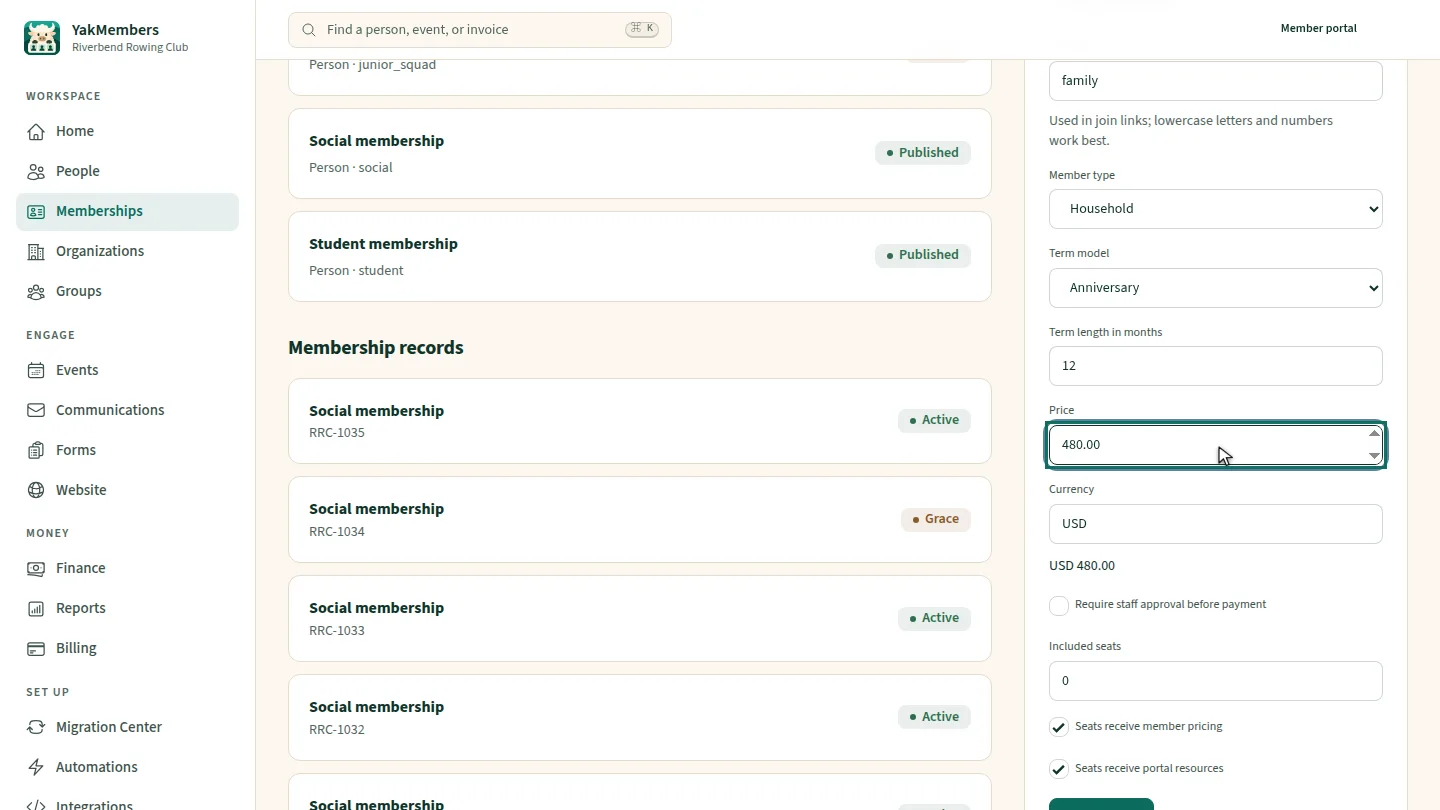
Choose Household as the member type. Keep anniversary terms of twelve months, and enter the yearly price.
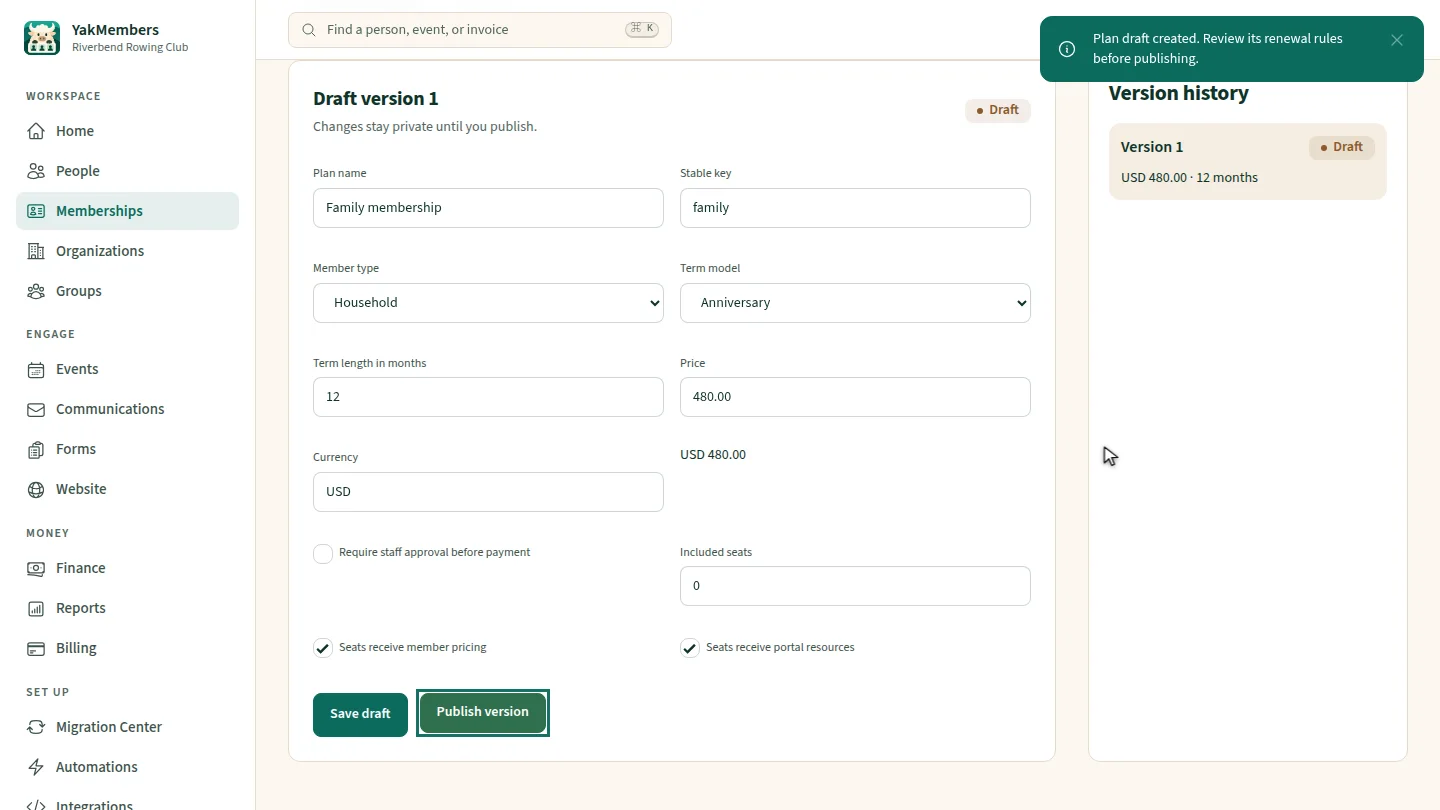
Select Create draft. The plan opens as a draft, so you can check its renewal rules before anyone sees it.
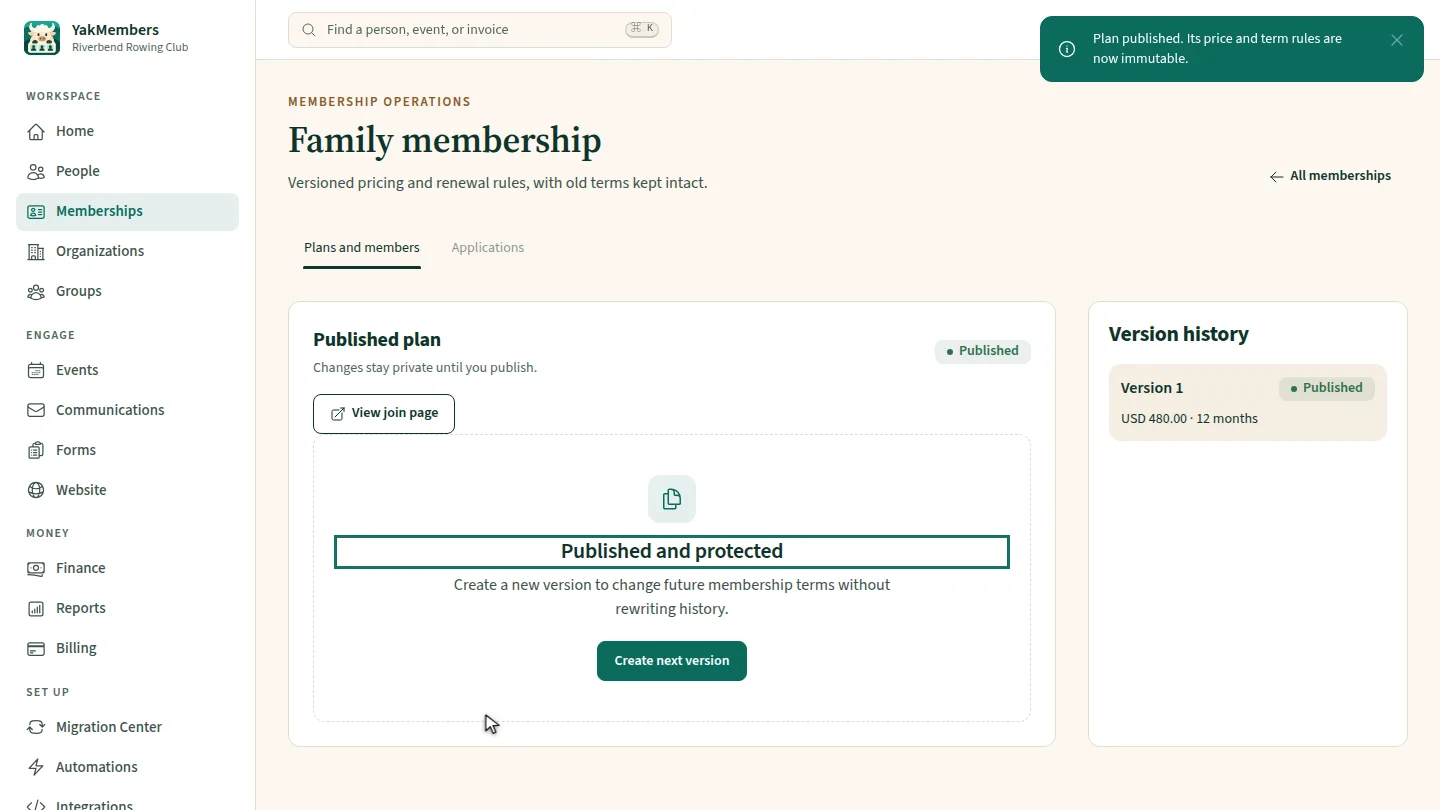
Select Publish version and confirm. The version is published and protected, and existing memberships keep their current rules.
Steps
Name the plan ▶ 0:07
Under New plan draft, enter a Plan name and a Stable key.
Set the terms and price ▶ 0:16
Set Member type to Household, keep Anniversary and 12 months, and enter the Price.
Create the draft ▶ 0:23
Select Create draft. The plan page opens with the draft's settings.
Publish it ▶ 0:31
Select Publish version and confirm. The plan shows Published and protected.
Next steps
Updated 2026-11-02
membership dues membership levels annual membership pricing tiers membership types