How to publish a website page in YakMembers
Keep your club website next to the membership data it shows. Draft a page, add blocks, then publish the whole site in one step. The live site never shows half-finished edits, and each published page is added to the site's sitemap for search engines.
Before you start
- An administrator role in YakMembers, with two-factor authentication turned on
- A website (select New website to create one)
Preview voice Narrated with a local preview voice; the final recording replaces it.
Transcript
Add a page to your club website and publish it.
Open your website, then enter the new page's title and its path on the site.
Select Create page draft. In the page editor, choose a block type, fill in its heading, and select Add block. Add more blocks for text, buttons or images in the same way.
Go back to the site, add a short publish note, and select Publish site. Every finished change goes live together, in one step.
Steps
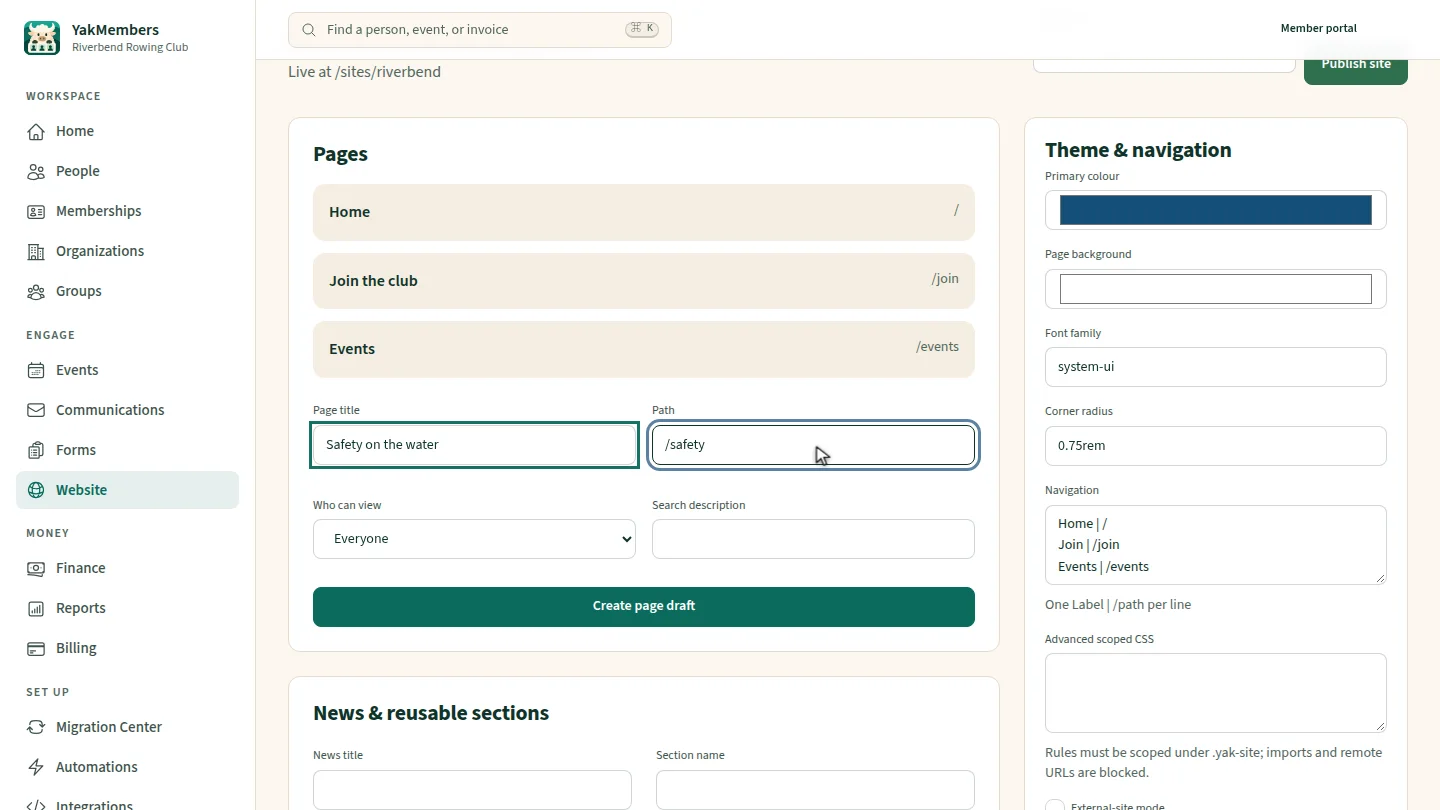
Start a page ▶ 0:04
In Website, open the site, then enter a Page title and Path.
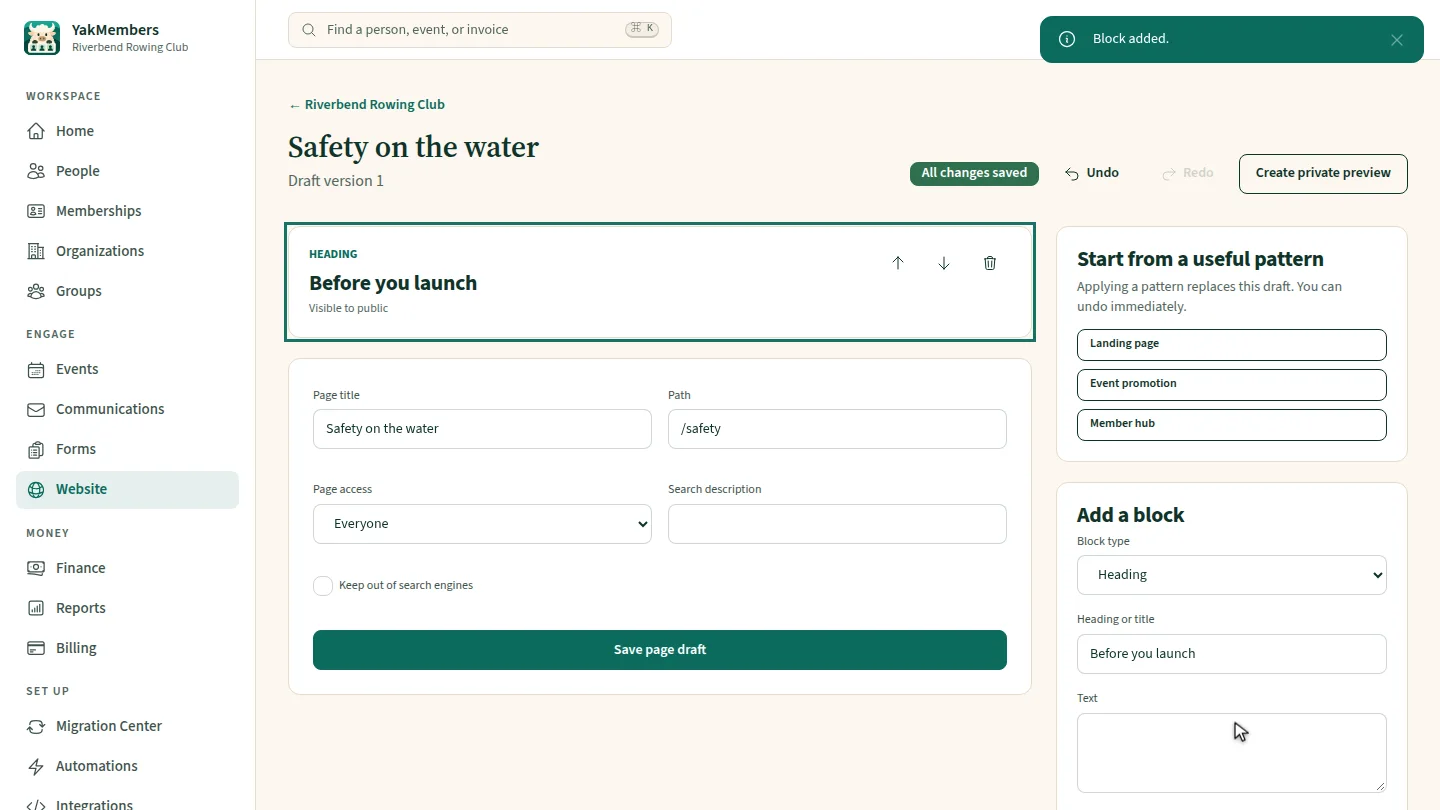
Add content ▶ 0:10
Select Create page draft. Under Add a block, choose a Block type, fill in Heading or title, then select Add block.
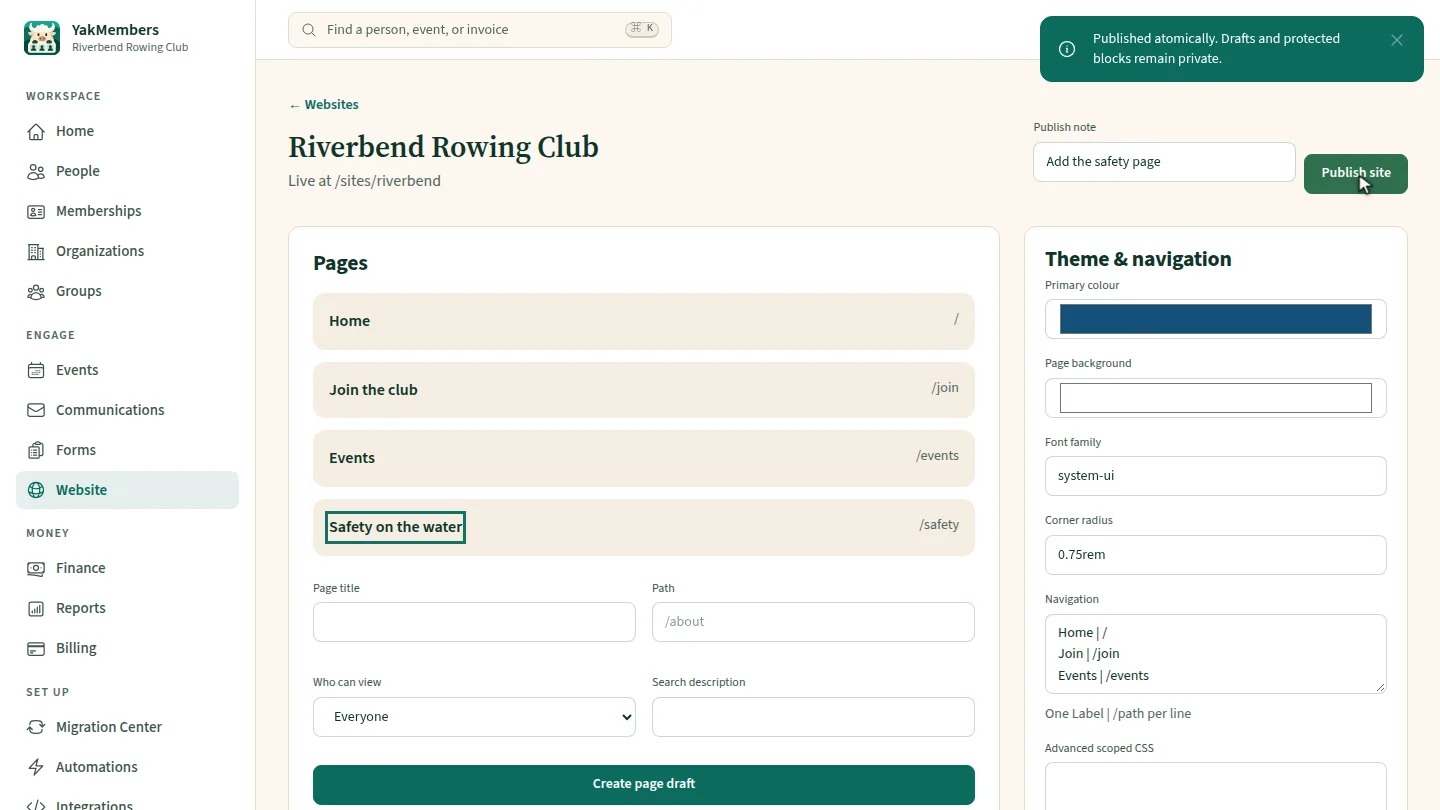
Publish the site ▶ 0:23
Select ← Riverbend Rowing Club to return to the site, enter a Publish note, then select Publish site and confirm.
Next steps
Updated 2026-11-02
club website web page cms sitemap publish site