
How to approve a membership application in YakMembers
Plans that need staff approval collect applications instead of payments. Review each one, then approve it for payment or ask for more information, with the reason kept in the application's history.
Before you start
- An administrator role in YakMembers, with two-factor authentication turned on
- A plan with Require staff approval before payment turned on
Preview voice Narrated with a local preview voice; the final recording replaces it.
Transcript
Decide on a membership application and keep a clear record of why.
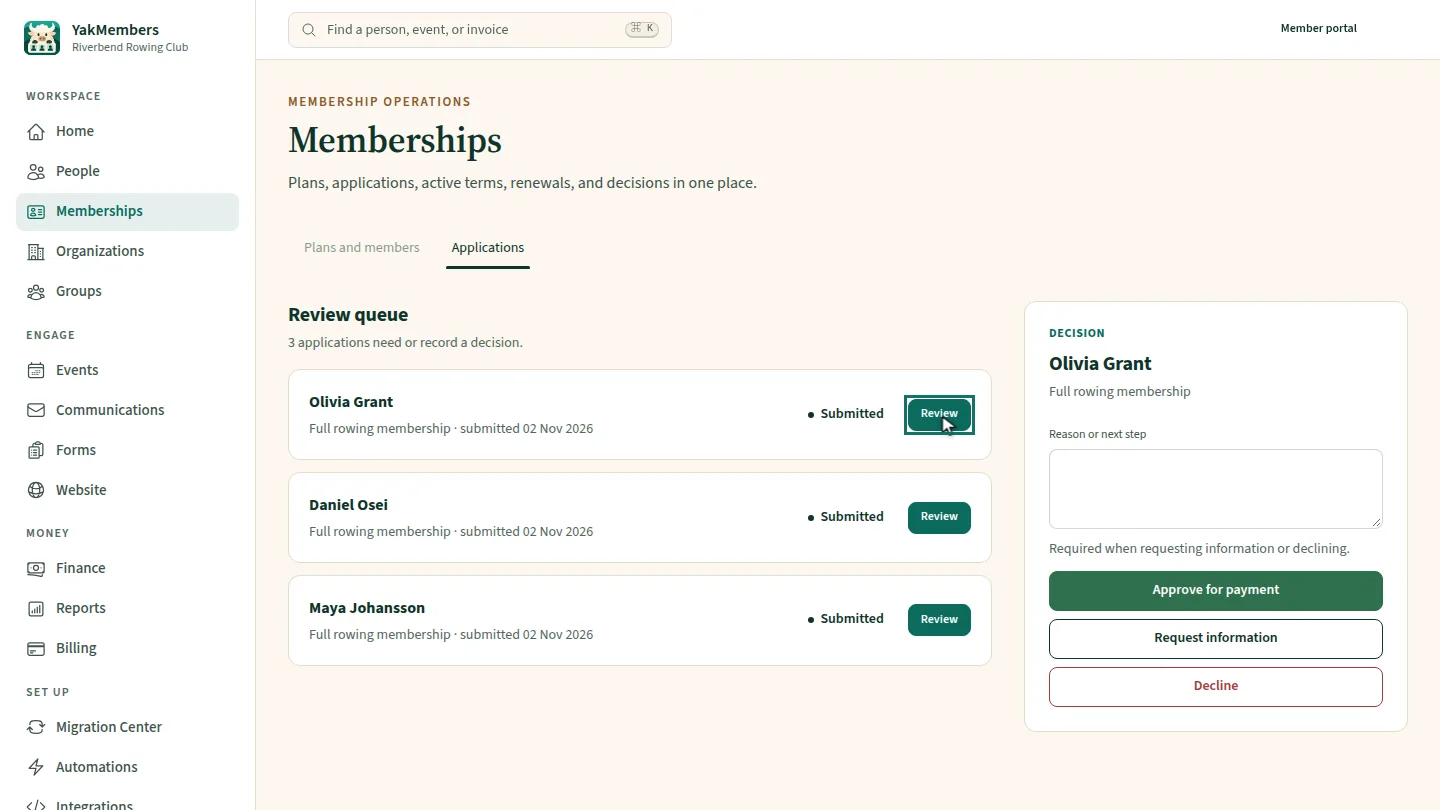
Open the Applications tab. Each waiting application shows the applicant and the plan they chose. Select Review next to one.
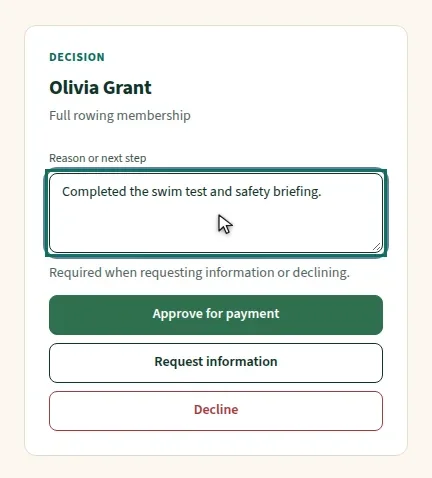
In the Decision panel, add a note. It's required if you decline or ask for more information, and useful either way.
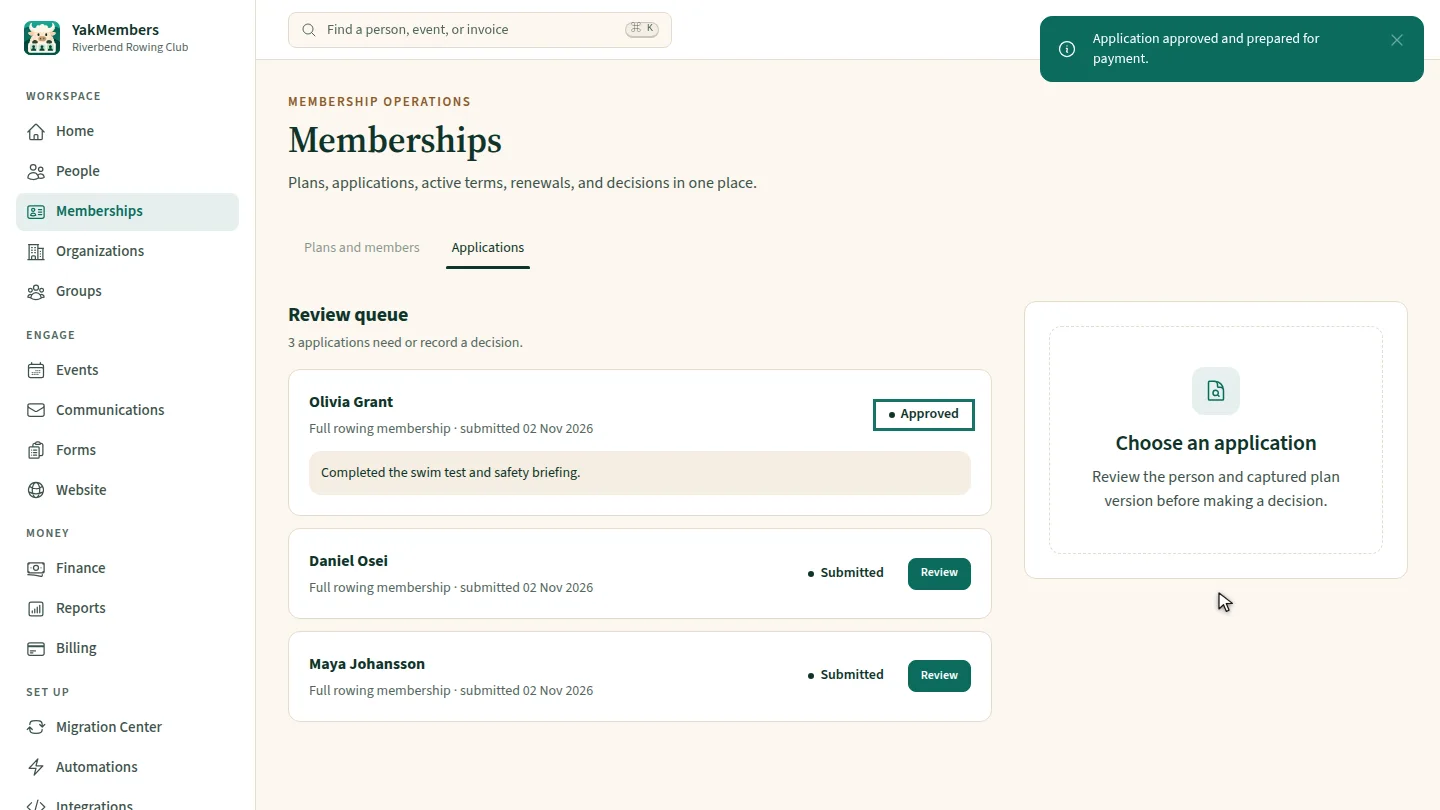
Select Approve for payment. The application is marked Approved, with your reason underneath, and the applicant can now pay for their membership.
Steps
Choose an application ▶ 0:06
In Memberships, open Applications and select Review next to the applicant.
Add a reason ▶ 0:15
In the Decision panel, enter a Reason or next step.
Approve it ▶ 0:23
Select Approve for payment. The application shows Approved with your reason underneath.
Next steps
Updated 2026-11-02
membership approval join request pending members application review