How to schedule an email campaign in YakMembers
Write once, send at the right moment. A campaign pairs an audience with a published template. Reviewing it freezes the content and the recipient list, so what you checked is exactly what goes out.
Before you start
- An administrator role in YakMembers, with two-factor authentication turned on
- A published audience and template (see Build an audience)
- A verified sender
Preview voice Narrated with a local preview voice; the final recording replaces it.
Transcript
Send a members' email at the right time, with the content and recipients locked in.
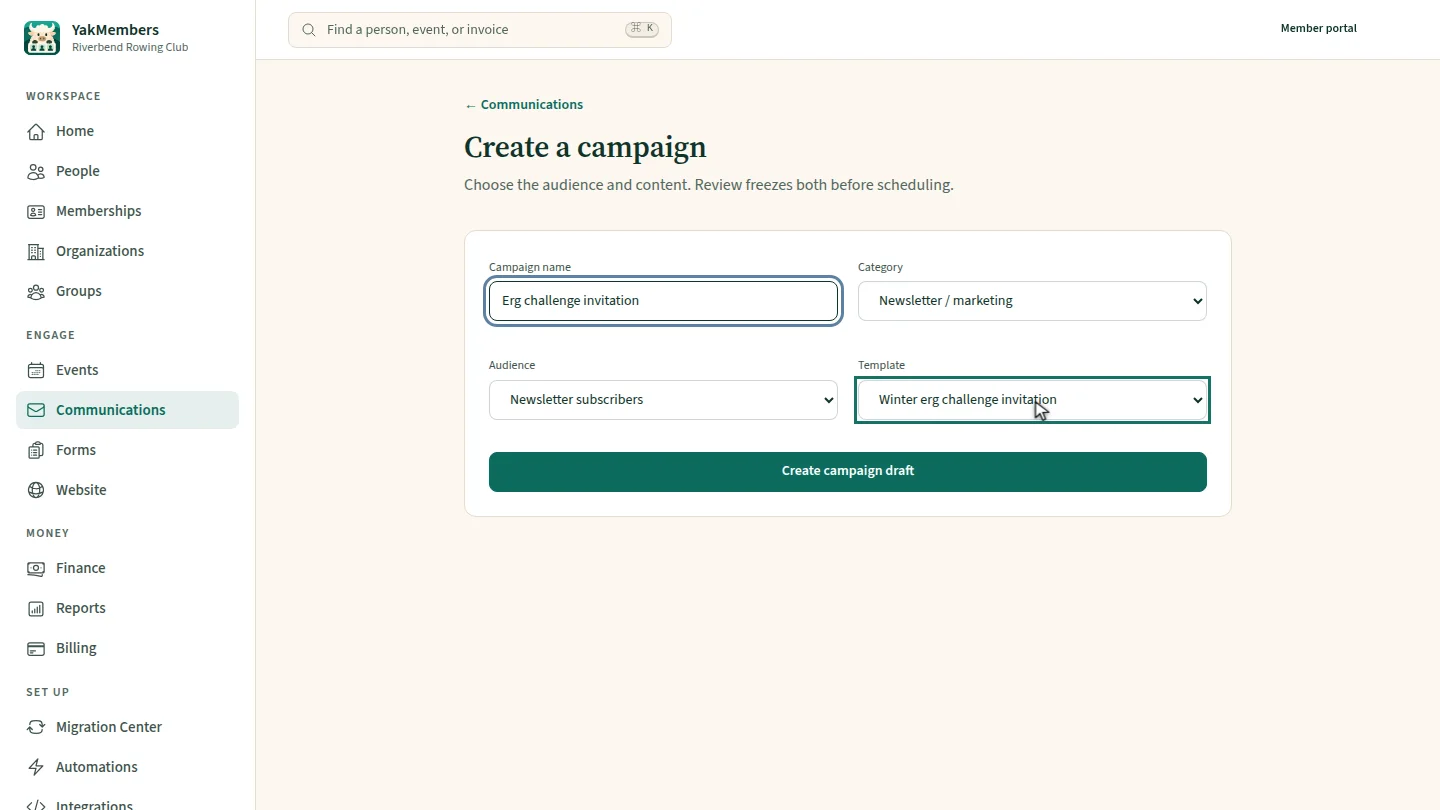
Name the campaign, then choose which audience it goes to and which published template it uses.
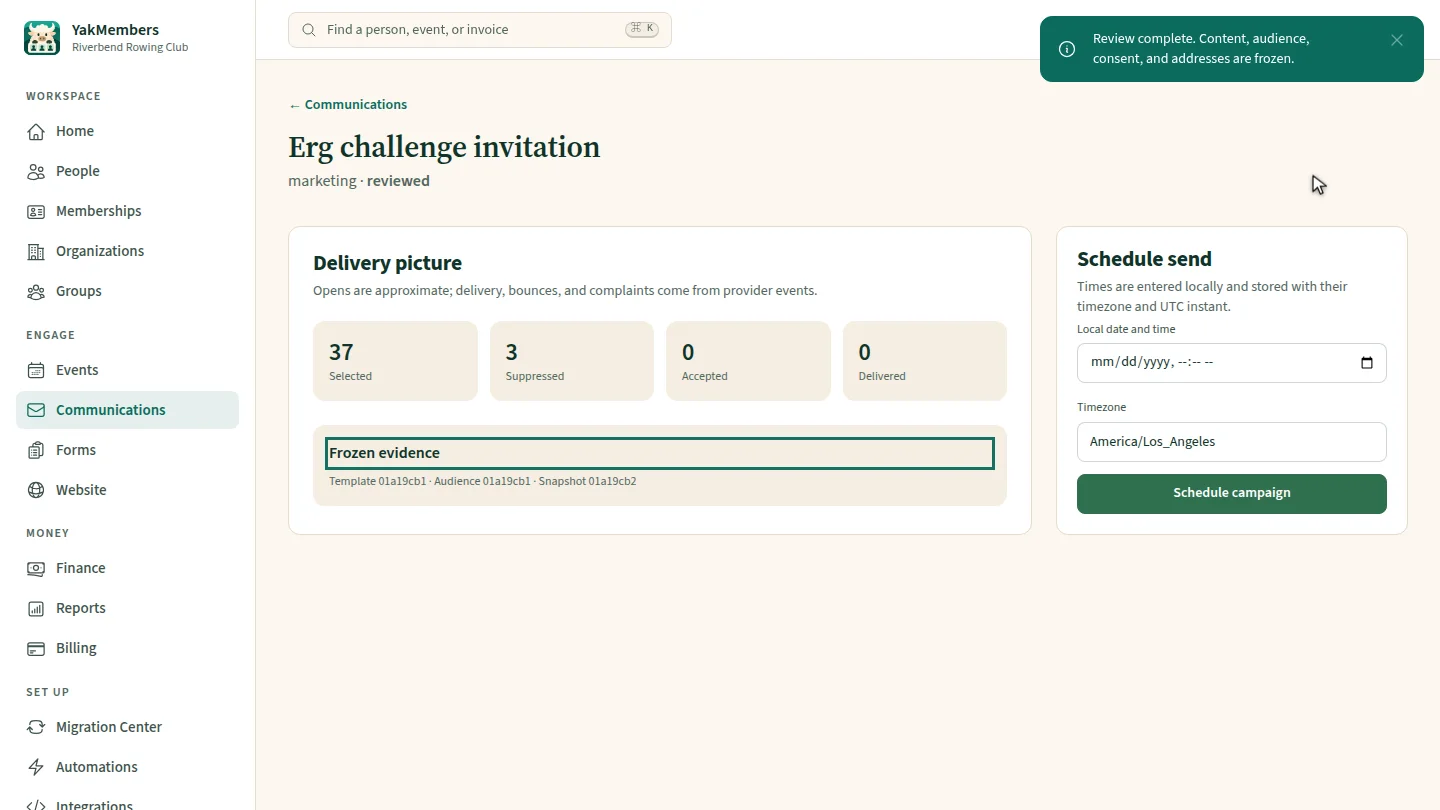
Select Create campaign draft, then Review audience and content. The recipient count and suppressed addresses are frozen with the content.
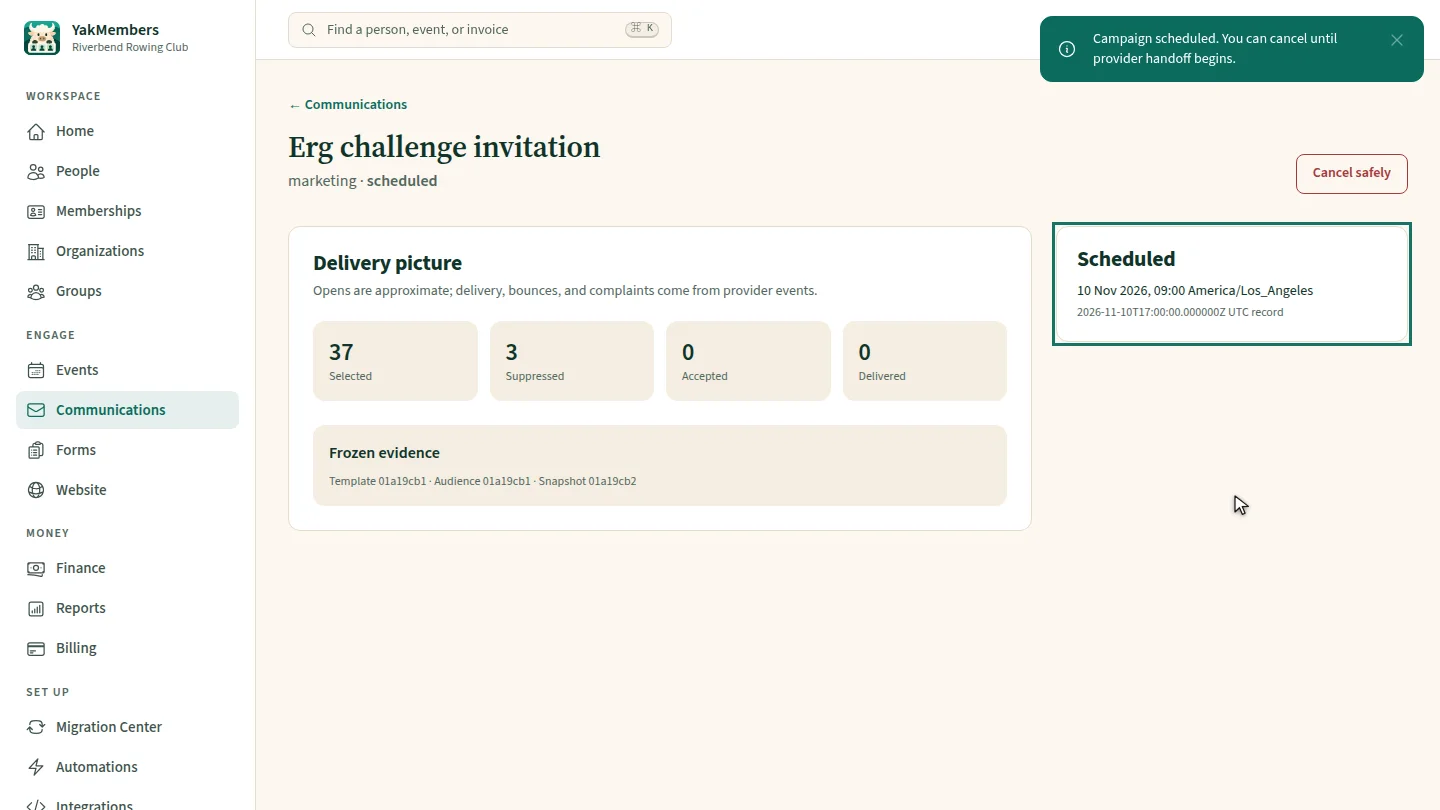
Under Schedule send, pick the local date and time. The timezone is your club's. Select Schedule campaign.
Steps
Set up the campaign ▶ 0:07
Enter a Campaign name, then choose an Audience and a Template.
Review it ▶ 0:14
Select Create campaign draft, then Review audience & content. Selected and Suppressed show the frozen counts.
Schedule it ▶ 0:24
Under Schedule send, set Local date and time, check Timezone, then select Schedule campaign.
Next steps
Updated 2026-11-02
email newsletter member email schedule email bulk email club newsletter