
How to check a WildApricot contacts export in YakMembers
Moving from WildApricot? Before anything is imported, run your contacts export through a dry run. YakMembers stores a checksummed copy of the file and reports how many rows are ready and which need attention, without changing a single record.
Before you start
- An administrator role in YakMembers, with two-factor authentication turned on
- A contacts CSV exported from WildApricot
- A migration project (create one under Start a migration project)
Preview voice Narrated with a local preview voice; the final recording replaces it.
Transcript
Check a WildApricot export for problems before you import a single contact.
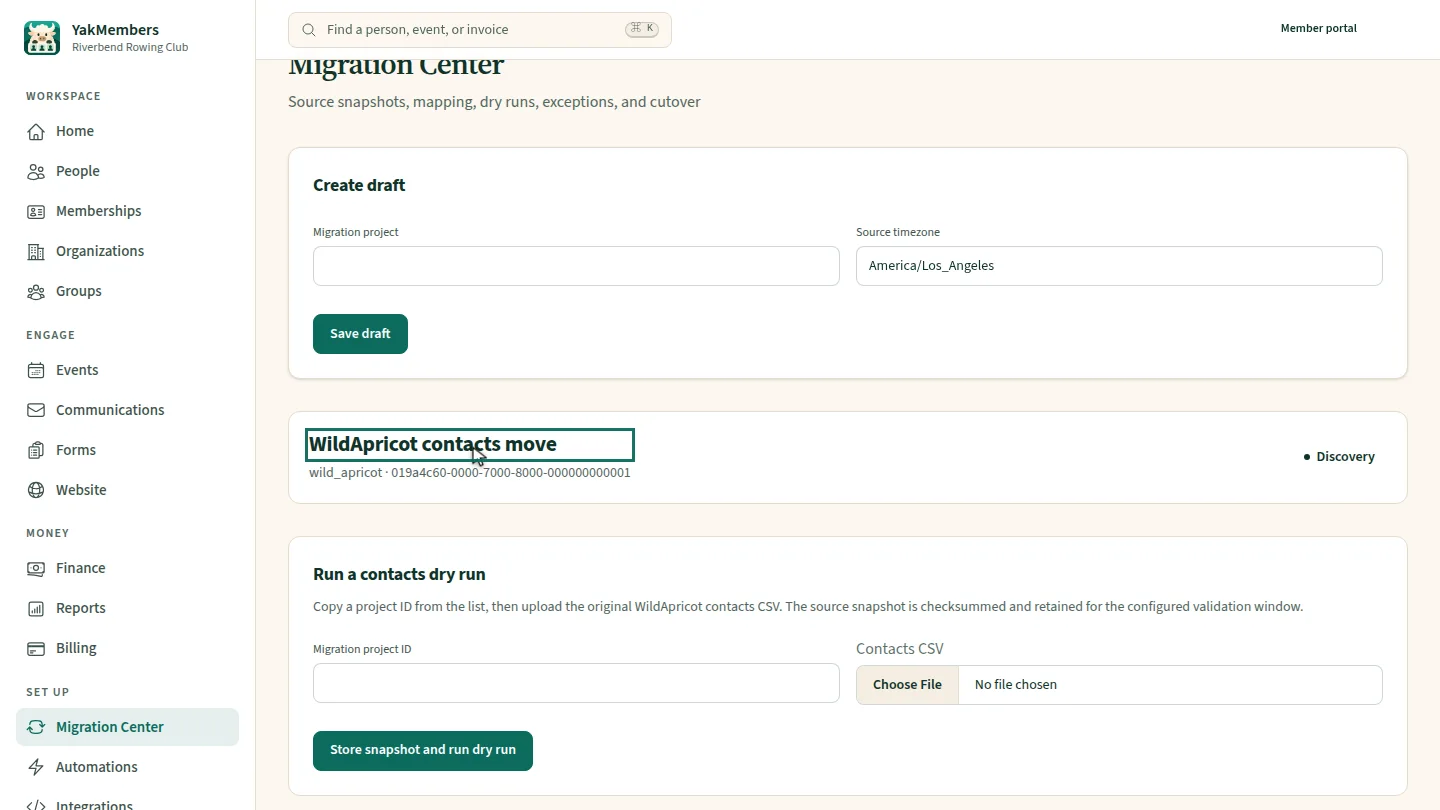
Find your project in the list and copy its ID. It's the code after wild apricot.
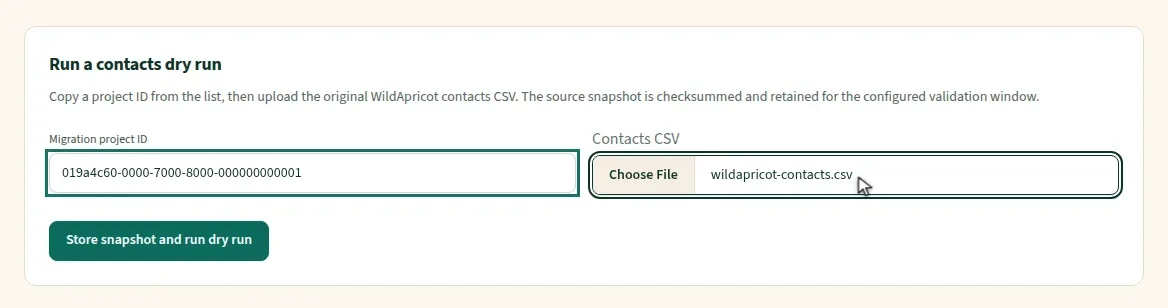
Under Run a contacts dry run, paste the project ID, then choose the contacts file you exported from WildApricot.
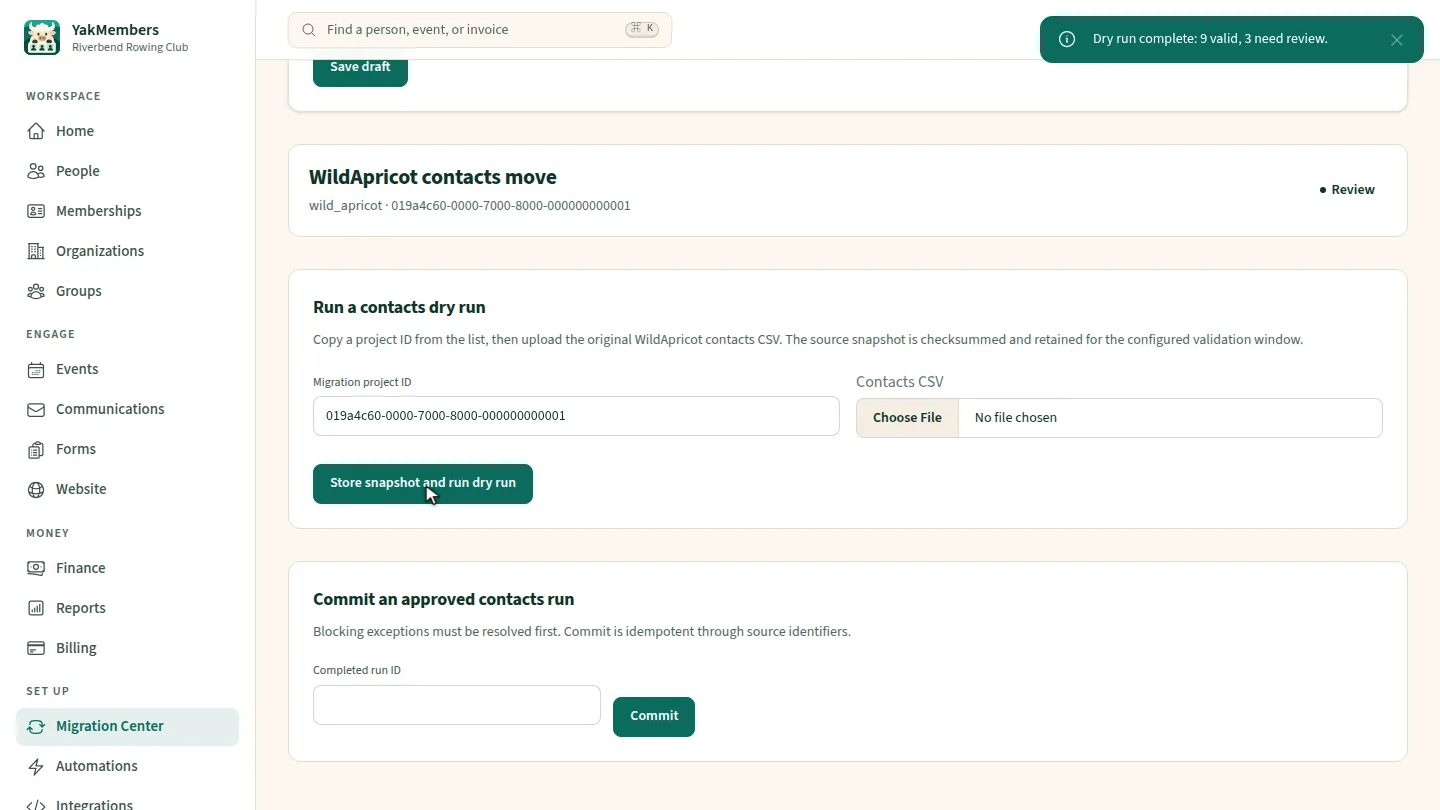
Select Store snapshot and run dry run. The message reports how many rows are valid and how many need review, such as two contacts sharing one email address, or a contact with no name.
Steps
Find the project ID ▶ 0:06
In Migration Center, find your project and copy the ID shown after wild_apricot.
Add the ID and file ▶ 0:12
Under Run a contacts dry run, paste the ID into Migration project ID, then choose the file for Contacts CSV.
Run the dry run ▶ 0:21
Select Store snapshot and run dry run. Dry run complete reports valid rows and rows that need review.
Next steps
Updated 2026-11-02
wildapricot migration import members csv import switch from wild apricot data migration