How to publish an event in YakMembers
Sessions, socials and meetings all start as an event draft. Add the details and at least one ticket, then publish a version that members can register for. Later edits stay in draft until you publish again.
Before you start
- An administrator role in YakMembers, with two-factor authentication turned on
Preview voice Narrated with a local preview voice; the final recording replaces it.
Transcript
Put a club session on the calendar with a ticket members can register for.
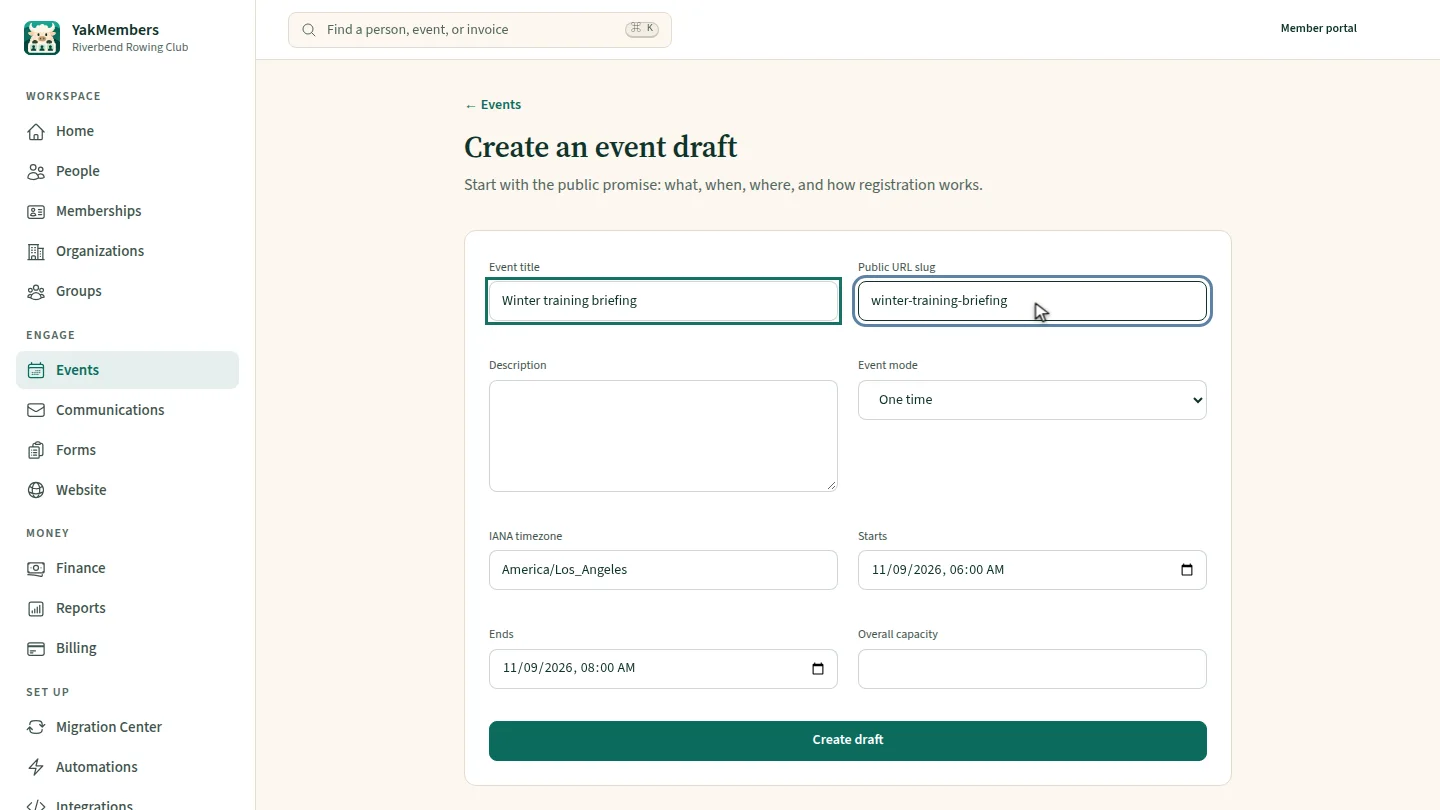
Enter the event title and the short slug for its public link. The timezone is already set to your club's.
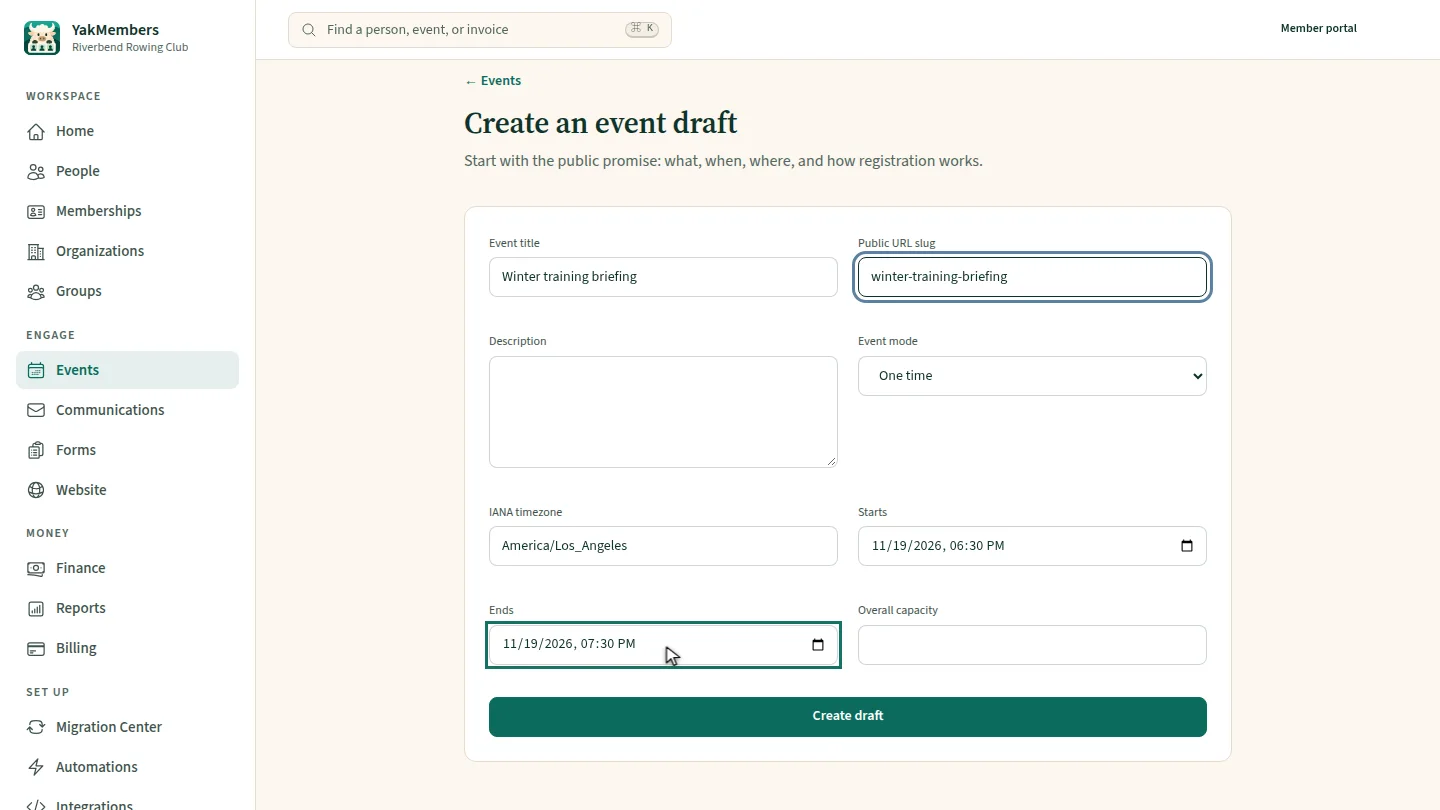
Set when it starts and ends, in your club's local time.
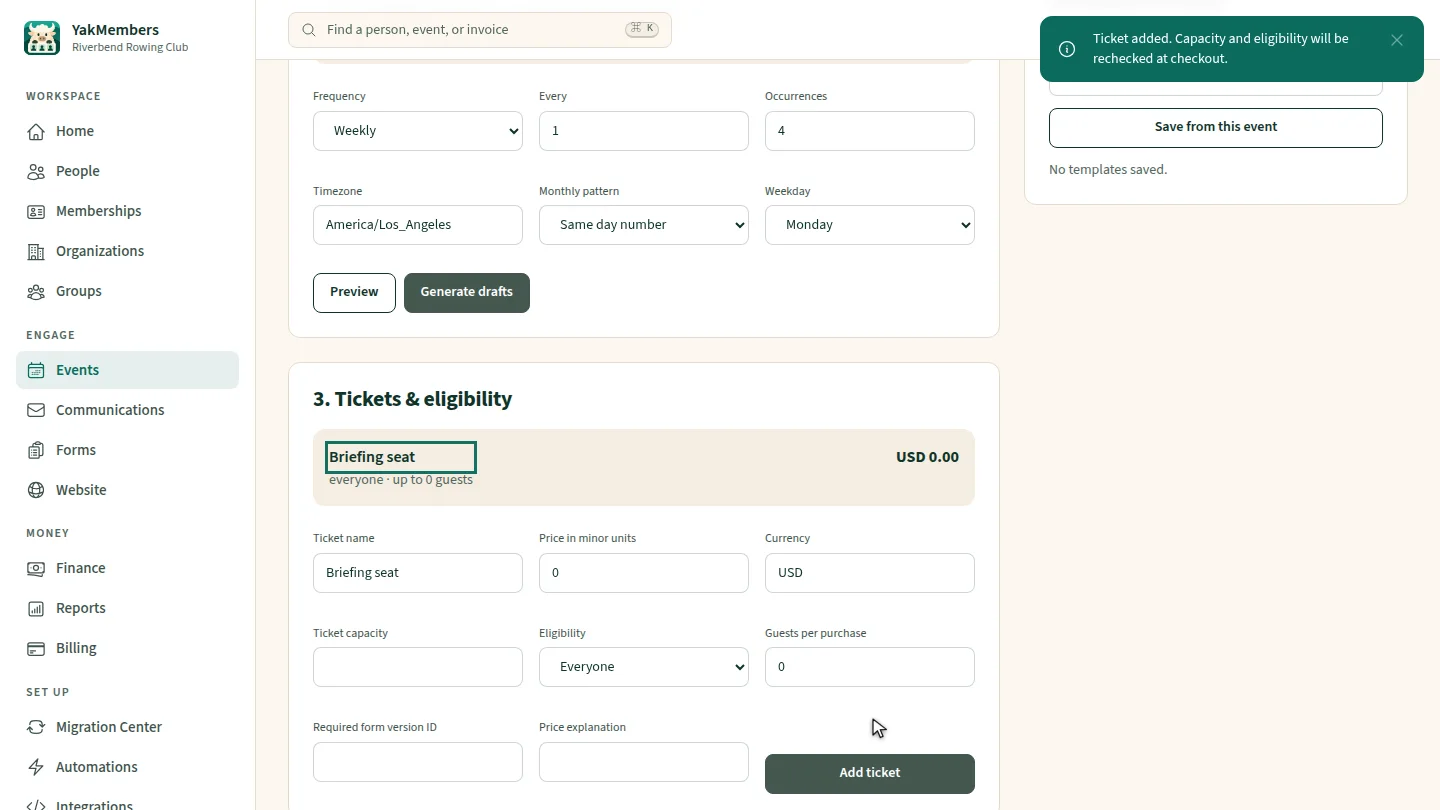
Select Create draft, then scroll to Tickets and eligibility. Name a ticket. A price of zero makes it free. Select Add ticket.
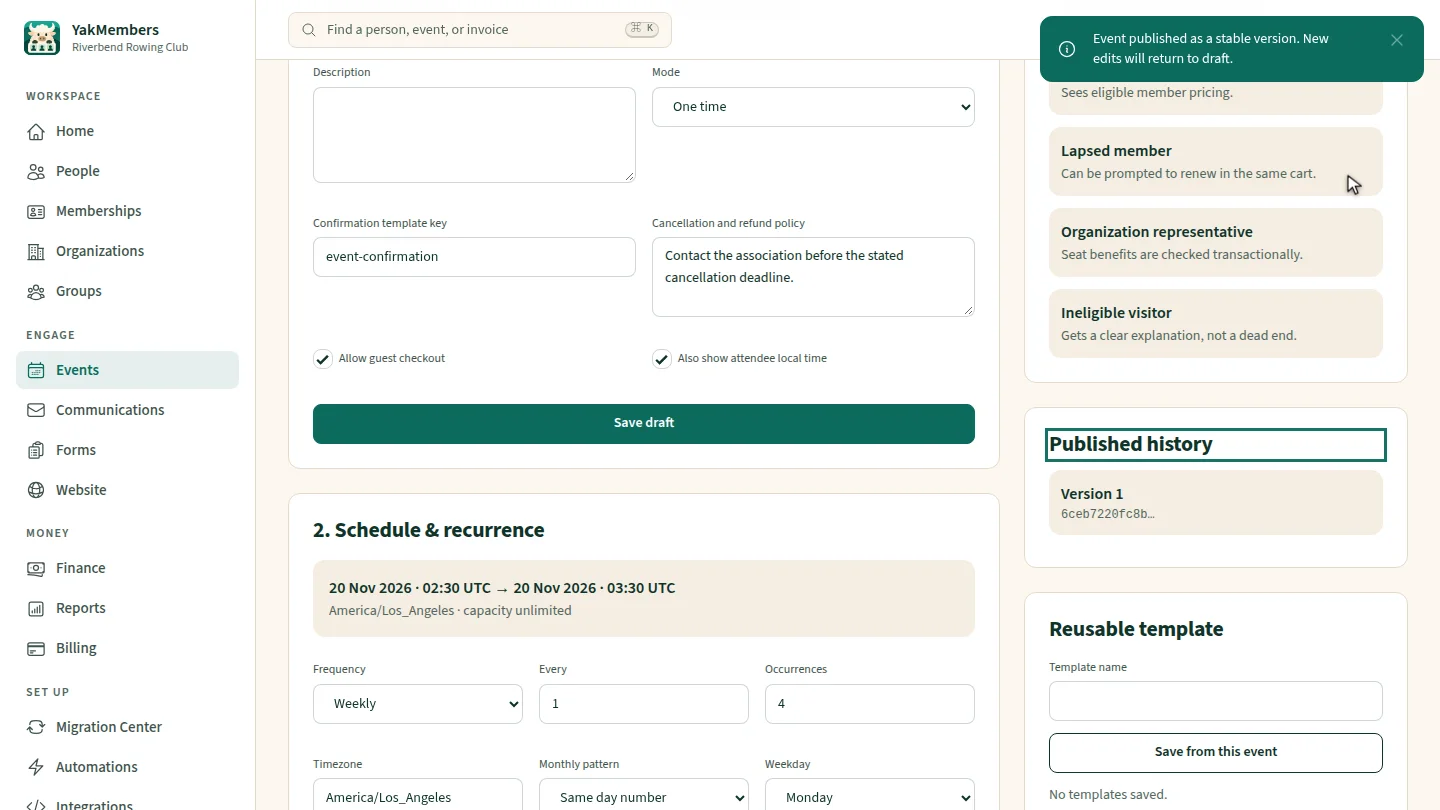
Select Publish version and confirm. The event is published, and the version appears in its published history.
Steps
Name the event ▶ 0:06
In Create an event draft, enter the Event title and Public URL slug.
Set the time ▶ 0:14
Set Starts and Ends.
Add a ticket ▶ 0:18
Select Create draft. Under 3. Tickets & eligibility, enter a Ticket name, then select Add ticket.
Publish it ▶ 0:28
Select Publish version and confirm. The version appears under Published history.
Next steps
Updated 2026-11-02
create event event registration club calendar tickets rsvp